Trade desk help
In order to use our trade desk, the interface where you can buy traffic from us directly, please use the following instructions.
Trading desk ADxAD
Hierarchy of the entities in the trading desk:
Project -> Campaign -> Creative
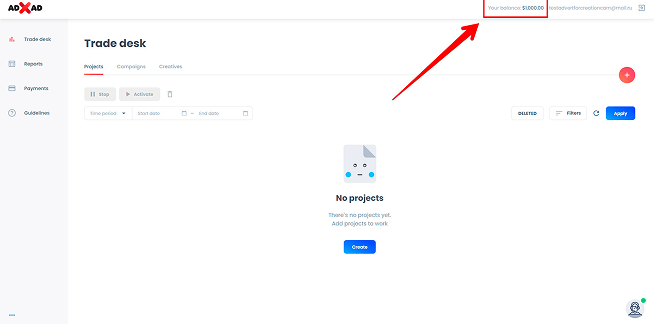
Where can I see my funds in the account?
In the upper right corner of the screen.
How to create a project?
Click the «Trade desk» button to go to the trading desk:
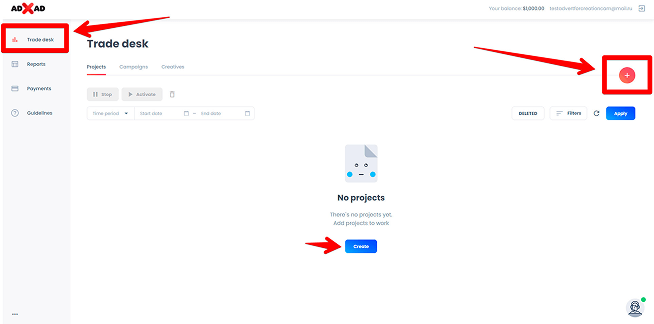
Now you are on the trading desk. Here you can create your projects, add campaigns to the projects and add creatives to your campaigns.
Click the «Plus» button in the upper right corner of the screen to create a new project. Type your project name:
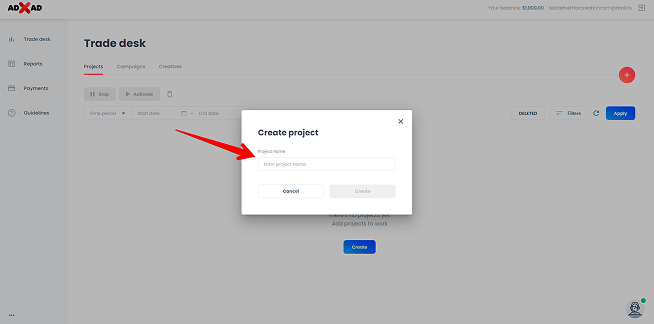
Then click «create». Your project was created.
Your project was created!
How to view a created project?
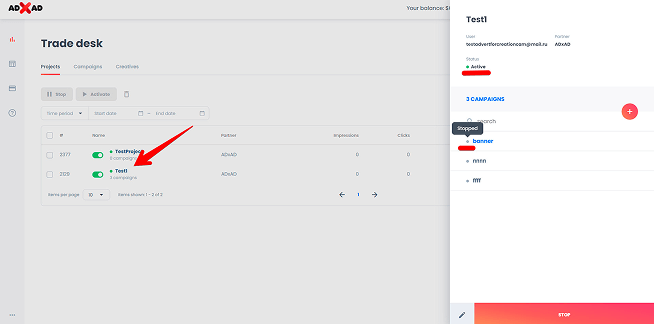
Just click the project name. You can see your project details, like status of the project and campaigns on the right tab.
To go back please click in any free place.
How to create a campaign?
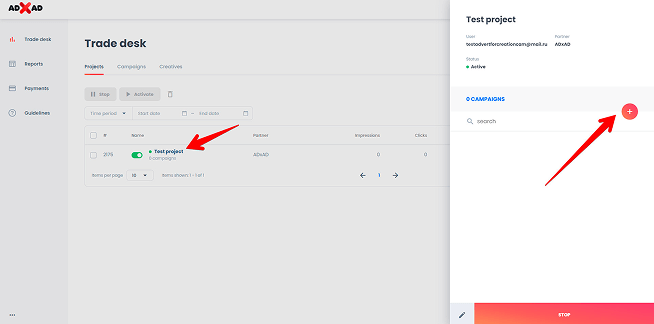
Go to any project and click «plus» button next to campaigns block:
To go back please click in any free place.
How to create a campaign?
Go to any project and click «plus» button next to campaigns block:
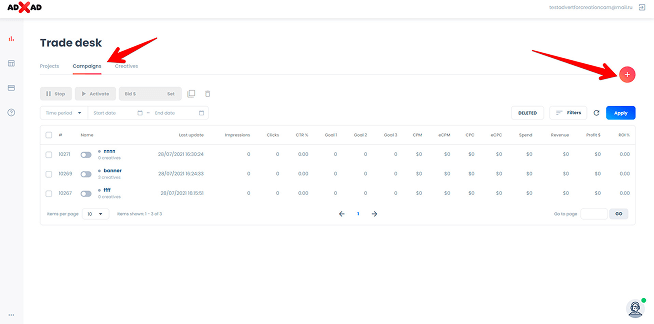
Else you can go to campaigns tab and click «plus» button:
In the campaign creating interface go through the four steps one by one:
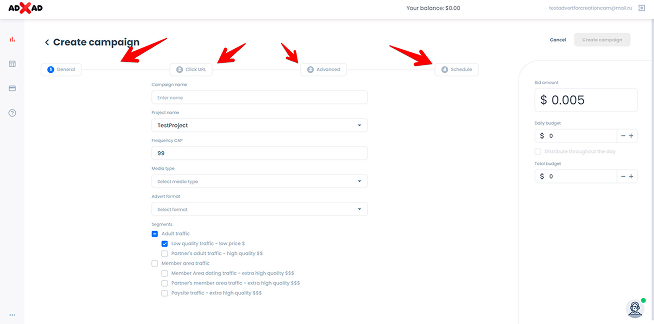
1. Set your bid (CPM in USD) and frequency cap. Type your campaign name and choose your campaign media type and advert format. Be careful, you can`t change them later:
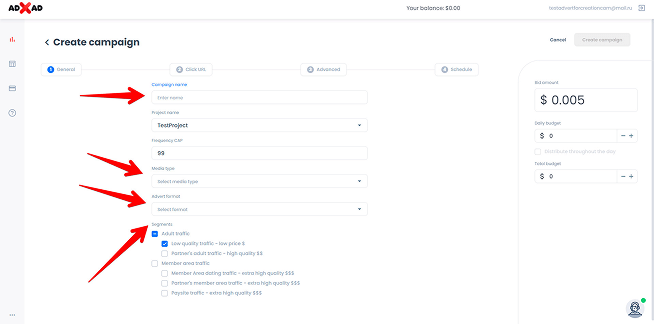
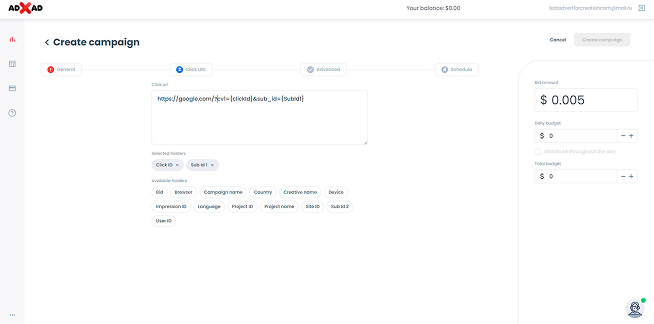
2. Paste your click URL with parameters:
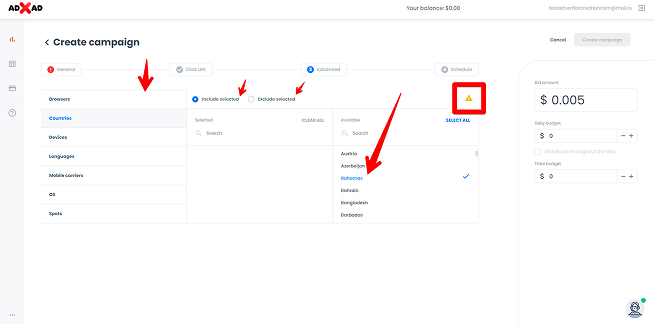
3. Set up the advanced targetings. If you don't choose any all the items will be selected automatically.
4. Set up the activity schedule for your campaign. Blue color means «on», gray color means «off». You can click on hours and days to activate or deactivate them:
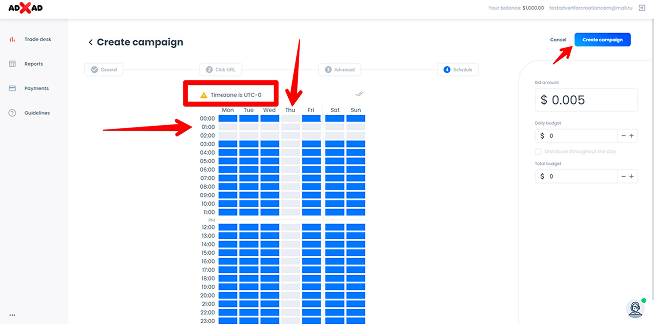
Click the «save» button to finish creating the campaign.
How to change the settings in your campaign?
Go to your campaign settings simply clicking on it:
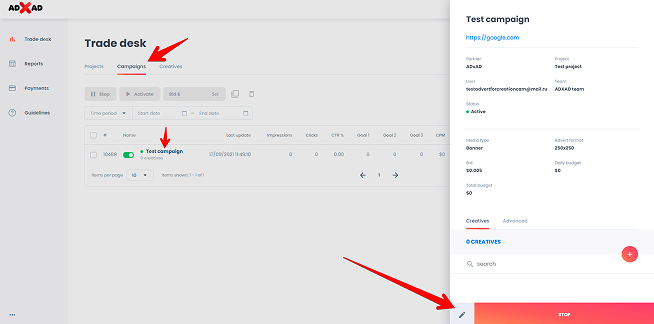
Click «campaign settings»
Now you are in the same interface where you have set up the settings when you created the campaign. Just change the settings you like and click the same «save» button.
How to add a creative to your campaign?
Go to your campaign and press «plus» button:
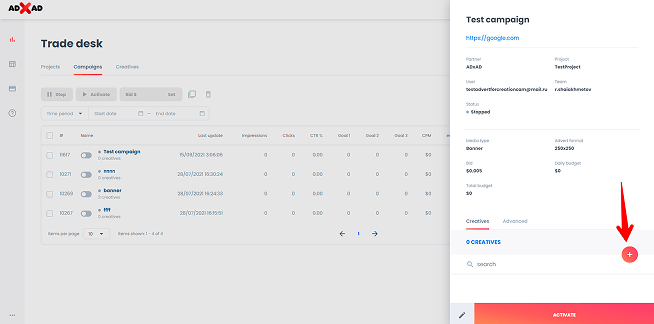
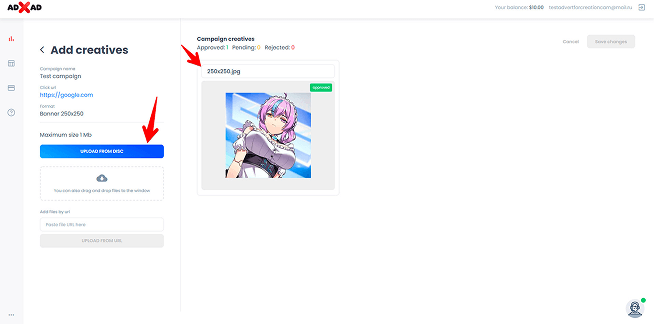
Upload creative files and type their names:
Click «add creatives» and wait for their status to become «approved».
How to launch your campaigns and start getting traffic?
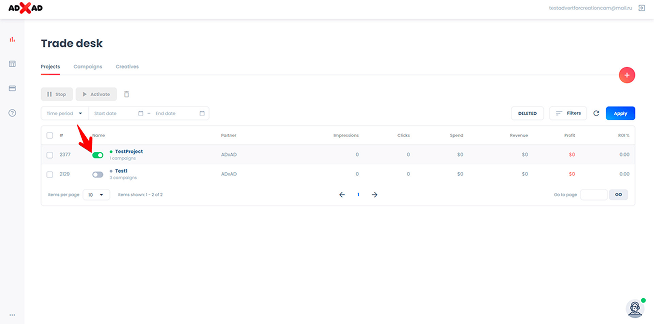
Make sure you enable:
1. Your project:
2. Campaigns in your project:
3. Creatives in your campaigns:
How to check statistics of your campaigns?
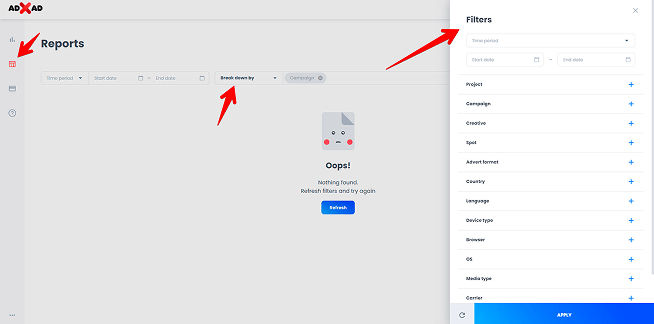
Open the «Reports» tab and choose your campaign in the filters on the right. You also can see full statistics of your campaigns and break it down by campaigns (and all targeting).